Sign a PDF and make it look printed and scanned without a printer
Add your own signature to a PDF and give the page a printed-and-scanned look in your browser. Real before and after files, starting settings and honest limits.
Sign and scan your PDF →Print, sign, scan: the same result without the printer
Many requests still end with “sign it and send back a scanned copy”: an equipment return form, a school permission slip, a rental application. The paper route is to print the PDF, sign it with a pen, scan or photograph the page and email the result. Without a printer at home, that means a trip to a copy shop.
ScanYourPDF does the visual part in your browser. You draw your own signature, place it on the signing line, and export a copy whose pages look like a signed printout that went through a scanner. The PDF is processed on your device; it is not uploaded to our servers.
Be clear about what that copy is: an image of your page with your handwriting on it, the same kind of file a scanner would produce from a signed sheet. It is not a certified electronic signature, it does not verify who signed, and it does not decide whether the recipient accepts the document. That decision belongs to the person or organization asking for it.
Sign and scan in one pass
The main editor combines the signature and the scan effect, so the whole job is a single export. The sample below was made with the same signature overlay and scan engine.
- Open the editor and choose your PDF. Keep the unsigned original somewhere safe.
- Turn on the signature control and draw your own signature with a mouse, trackpad or finger. Clear the pad and redraw until it looks like the way you sign on paper.
- Open the placement editor. Drag the signature onto the signing line and resize it to match the line, then choose which page or pages to sign.
- Leave scan effects on and start gently: grayscale, a fraction of a degree of rotation, low noise and low blur.
- Preview the signed page at full size. Check that the signature sits on the line and does not cover names, dates or amounts.
- Download the PDF, open it and check every page before you send it.
Make the signature look like ink on paper
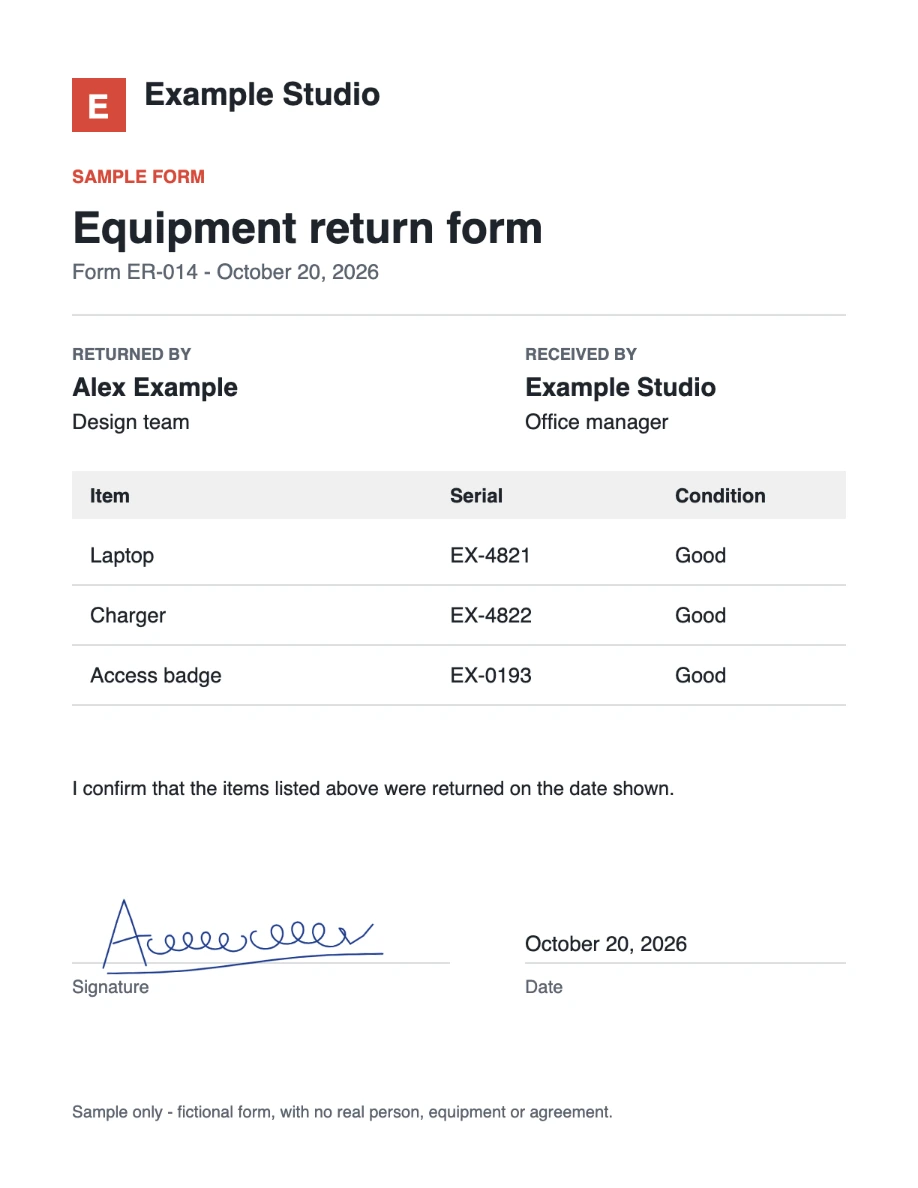
Size and position matter more than any effect. A pen signature on a printed form usually spans most of the signing line and is two or three text lines tall. In the sample, the signature is 36% of the page width and its lowest strokes rest on the line.
Few people sign perfectly level. A rotation of one to three degrees reads as handwriting; the sample uses −2°. Leave opacity at 100%: a lighter stroke looks faded rather than written.
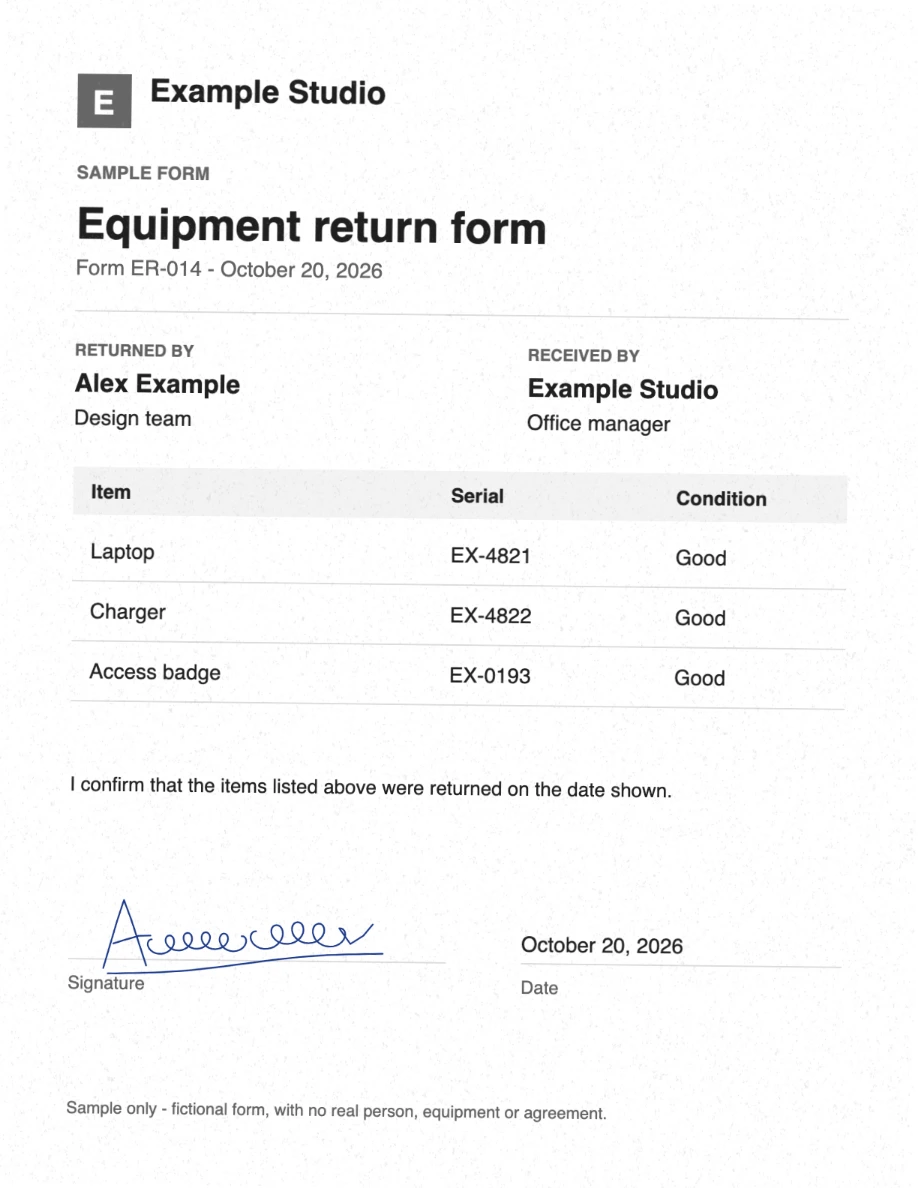
The editor draws the signature after the scan filters, so it keeps its color and crisp edges even on a grayscale page. In the sample, a blue signature on a gray page looks like a color scan of a form signed in blue ink. If you want it to blend into a black-and-white scan, choose black ink on the draw pad.
Choose scan settings that keep the page readable
Grayscale with a little texture resembles a typical office scan. The signed-and-scanned sample uses the Medium settings from the scan-effect guide: grayscale, 0.65° rotation, 0.3 px blur and 0.25 noise. A lighter setting gives a cleaner copy; heavy blur makes small print harder to read.
Rotation happens inside the original page boundary, so a large angle can cut off content near the margins. Check all four corners of every page, especially on forms with narrow margins.
If the recipient only needs your signature, switch scan effects off. The sample’s signed PDF shows that export: the same signature placement on a clean page.
What changes in the exported PDF
The export is built from page images, like a scan. The original text can no longer be selected or searched, links and form fields stop working, and no OCR text layer is added. Image pages are also much larger than text: compare the measured files in the table below.
Rasterizing removes any existing digital signature or certificate from the document. If a PDF is already digitally signed and that validation matters, do not run it through a scan effect. Keep the unsigned original as well, so you can make a new copy if something needs to change.
When to use another signing method
If the recipient asks for an electronic signature through a signing platform, a certificate-based digital signature, a witness or an original ink signature, use that method instead. A signed-and-scanned look does not provide identity checks, an audit trail or tamper evidence.
Sign only documents you are authorized to sign, with your own signature. If you are unsure whether a browser-made signed copy is acceptable, ask the recipient before sending it.
See the same form unsigned, signed, and signed and scanned
This fictional form starts unsigned. A sample signature, drawn on a transparent canvas like the editor’s draw pad, was placed on the signing line by the editor’s own signature overlay. Open any image at full size, or download the PDFs to inspect the exported documents.
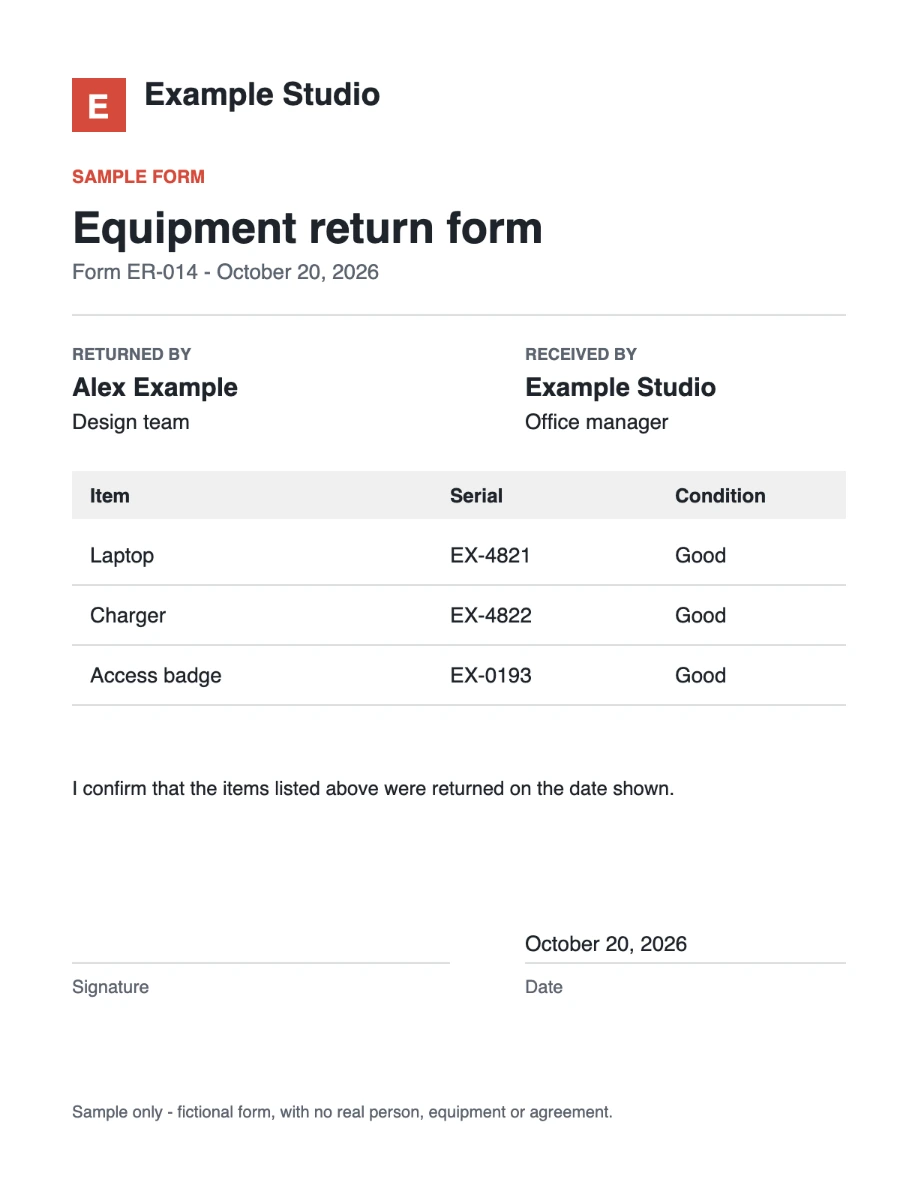
Download unsigned PDFDownload signed PDFDownload signed and scanned PDFView reproducible settingsHow the sample was made
| File | Bytes | Scan settings |
|---|---|---|
| Unsigned original | 2114 | Digital source, before rendering |
| Signed, effects off | 93576 | None; PNG page image |
| Signed and scanned | 773128 | Grayscale, rotation 0.65°, blur 0.3 px, noise 0.25; JPEG page image |
The signature is a synthetic sample, not a person’s signature. These downloads do not use your daily document allowance.
One PDF per day is free. Pro offers unlimited scans for $2/month or $20/year. See plans.