Add your own signature to a PDF without printing
Draw your own signature, position it on the page, preview it, and download a copy. Understand what this visual signature does and does not do.
Add your signature →Prepare your own signature
Draw your own signature in ScanYourPDF using a mouse, trackpad or finger. The drawing canvas creates a signature with a transparent background. You can clear the canvas and draw it again before placing it on the document.
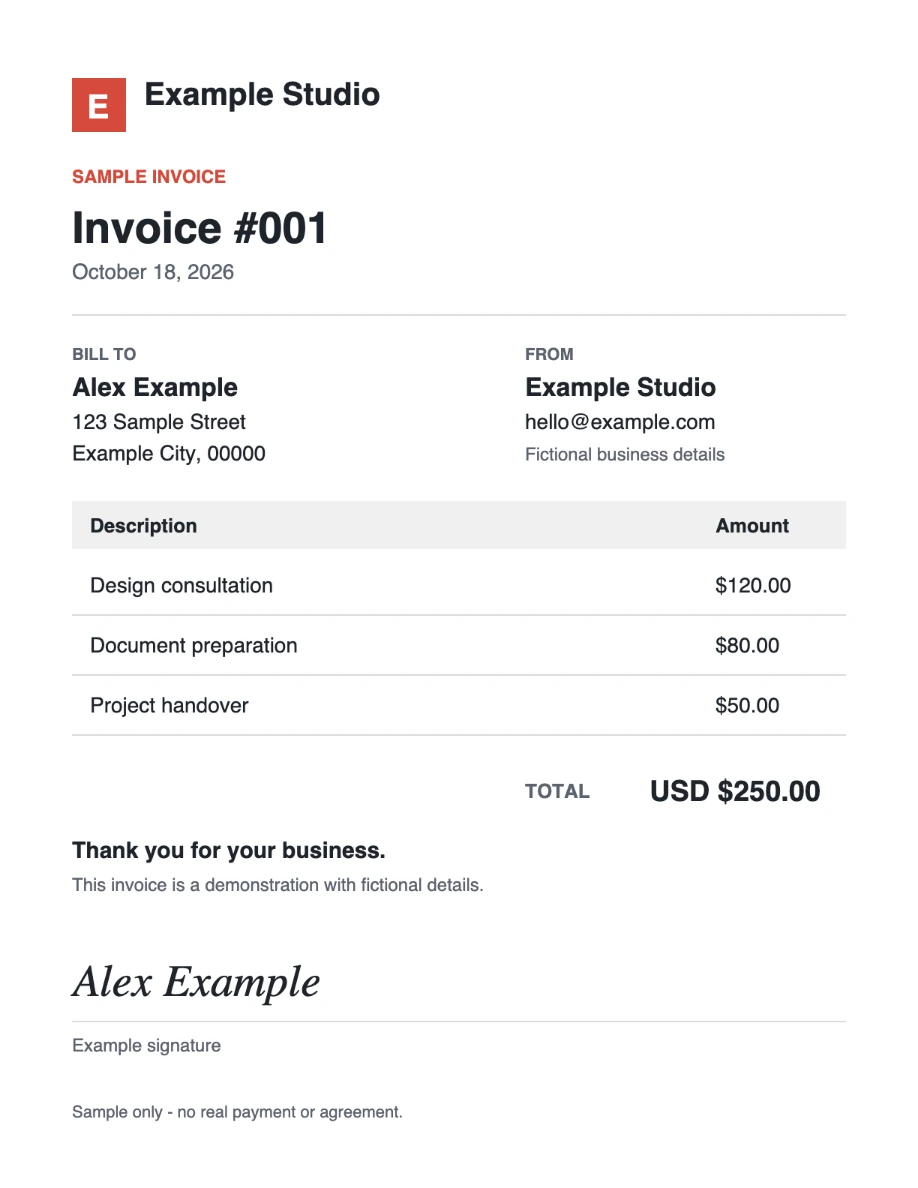
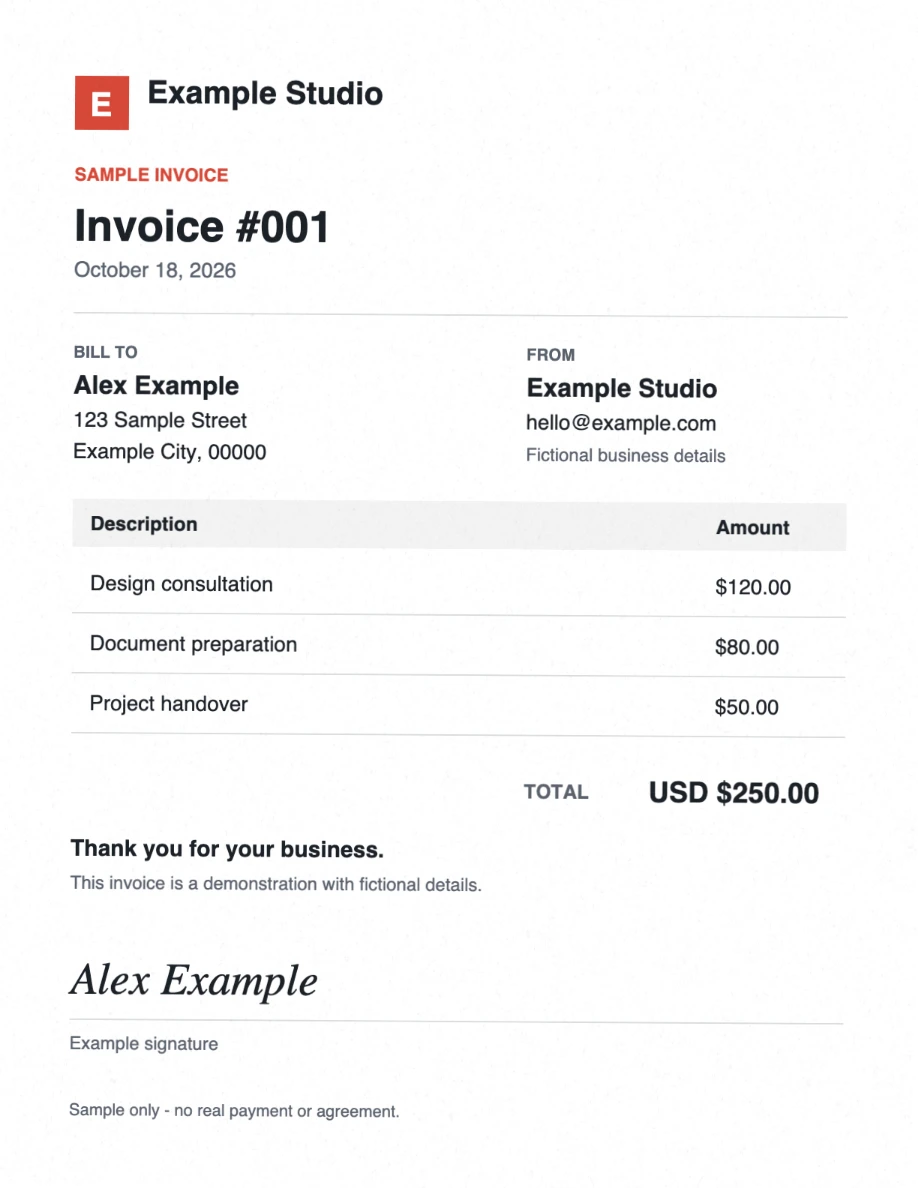
The example signature on our sample invoice is fictional and labelled as a sample. Replace it with your own signature when preparing your document, and only sign documents you are authorized to sign.
Place and inspect the signature
Open the main editor, where scan effects and signature placement are available together. A preview lets you check the position before creating the output.
- Choose your PDF, then enable the signature control.
- Draw your signature on the canvas. Open the placement editor.
- Move and resize the signature over the intended signing line. Adjust its angle and opacity only if needed.
- Choose the intended page or pages, and confirm the placement. Check that it does not cover dates, amounts or other text.
- Choose whether scan effects should be enabled. Preview the page, download the PDF, and reopen it to verify placement on all intended pages.
Decide whether to add a scan effect
A signature can sit on a clean page; you do not need to make the entire document look aged. With scan effects enabled, start gently so the page remains legible. The renderer overlays the signature after applying the page’s scan filters, so the signature is not blurred by those filters.
The output is assembled from page images. It does not preserve the source PDF’s selectable text, interactive form fields or cryptographic signature information. Retain the original and use a dedicated signing workflow if those properties are required.
Understand the limits of an image signature
Placing handwriting on a page adds a visual mark. ScanYourPDF does not issue a digital certificate, verify the signer’s identity or provide a signing audit trail. It does not promise that a recipient will accept the result.
Ask the receiving organization which format and signing method it requires. Do not rasterize an already digitally signed PDF if you need to preserve validation of that signature.
Inspect the same document before and after
The fictional sample contains large text, a table and a labelled example signature. Open either image at full size to inspect the page; download the PDFs to check the exported document itself.
Download original PDFDownload scanned PDFView reproducible settings
These sample downloads do not use your daily document allowance.
One PDF per day is free. Pro offers unlimited scans for $2/month or $20/year. See plans.