How to make a PDF look scanned without losing readability
Start with a light scan effect, compare the same page at full size, and keep the text readable. Includes the original and real processed sample.
Try a light scan effect →Start with the document you actually want to send
A scan effect turns a clean digital PDF into pages that resemble a document captured by a scanner. A little rotation, subtle texture and restrained blur can create that appearance. Heavy blur and yellow paper are optional effects, and can make small text harder to read.
Keep your original PDF. ScanYourPDF renders the pages as images when it exports a scanned result. The result can look convincing while losing selectable text, links and form fields from the original. Use the original when searchability, accessibility or interactive fields matter.
Make and check your first result
Use the same page and magnification for every comparison. The sample below is a fictional invoice, processed with the application’s own renderer. Its example signature is identified as a sample.
- Choose your PDF in the editor. The file is processed on your device.
- Start with low blur and noise, near-white paper and very little rotation. Leave brightness and contrast close to their neutral values.
- Preview a page with small text, a table and a signature. Open the preview at full size, rather than judging a thumbnail.
- Adjust one setting at a time. Compare totals, punctuation, table borders and the edges of the page.
- Download the result, open the PDF and check every page before sharing it. Keep the digital original separately.
Choose intensity by what stays readable
Light is a useful starting point for invoices and forms: barely visible rotation and texture, with dark text. A more visible effect can suit large text, but should still preserve every digit and line. Strong effects are a creative choice that needs extra checking on small print.
Blur softens characters, noise adds texture, rotation changes the page angle, and yellowish changes the paper tone. More of these settings does not mean a better scan. If the result looks faded, reduce blur and noise before trying to compensate with extreme contrast.
Rotation happens inside the original page boundary. Large angles can cut off content near the edges. Check all four corners and use a smaller angle when the source has narrow margins.
When a scan effect is the wrong export
A scan appearance does not prove that a paper original existed, prevent editing or certify a signature. Check the recipient’s requirements before converting an important document.
For a signature with a clean background, turn off scan effects in the editor and preview the signature-only result. That export still uses rendered page images; keep the original if you need its original text and form structure.
Inspect the same document before and after
The fictional sample contains large text, a table and a labelled example signature. Open either image at full size to inspect the page; download the PDFs to check the exported document itself.
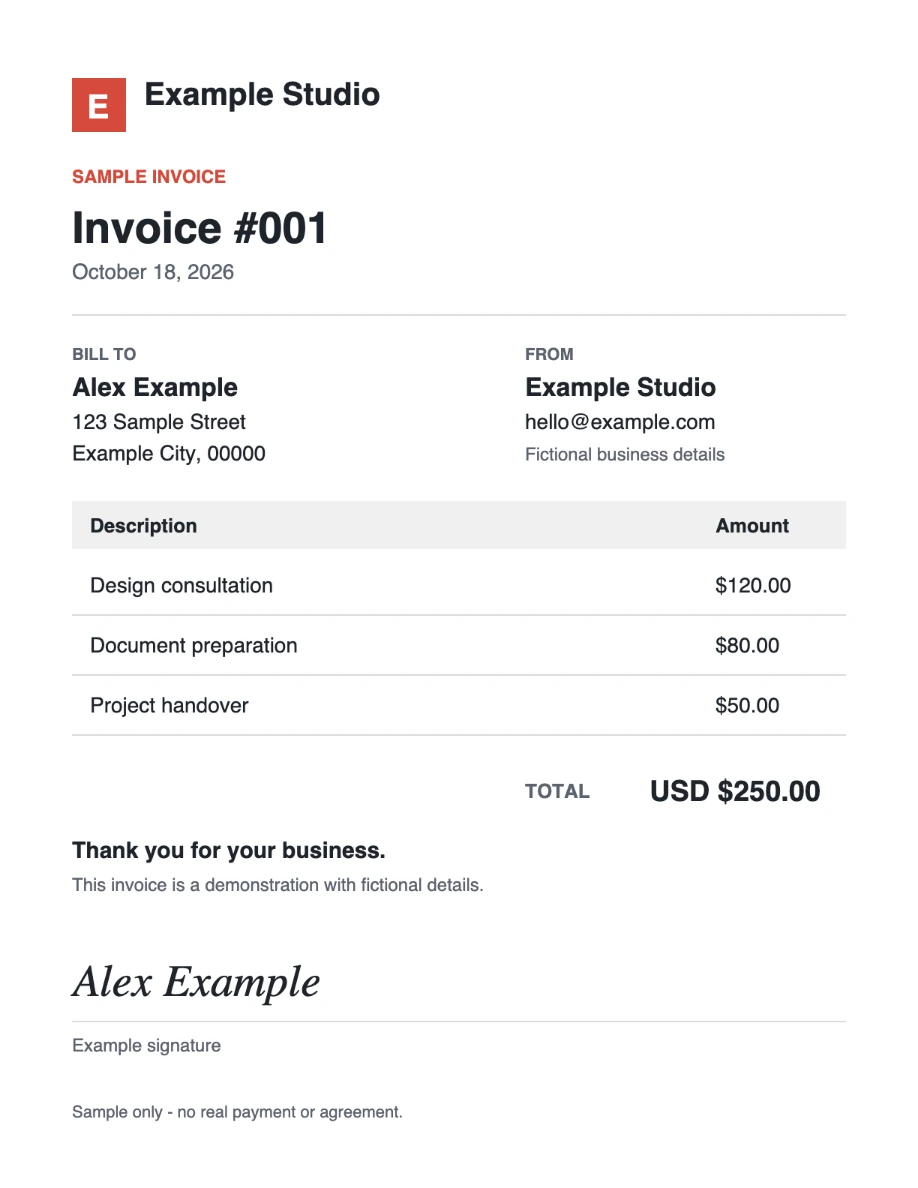
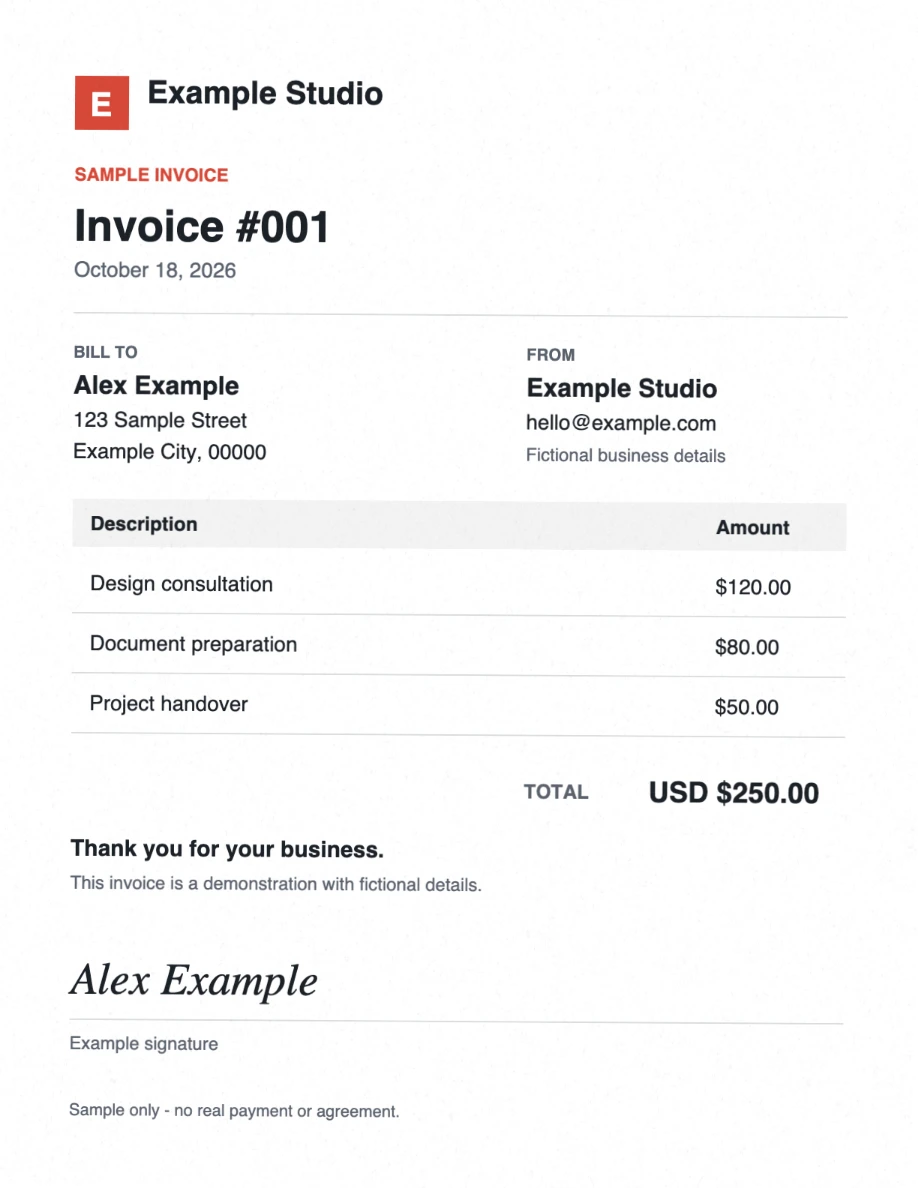
Download original PDFDownload scanned PDFView reproducible settings
These sample downloads do not use your daily document allowance.
Three intensities, one source
All three outputs use the same one-page Letter source and 144 ppi (1224 × 1584 pixels). The signature is already in the source; this comparison changes the scan effect only. These labels describe the sample presets, not saved presets currently offered by the editor.
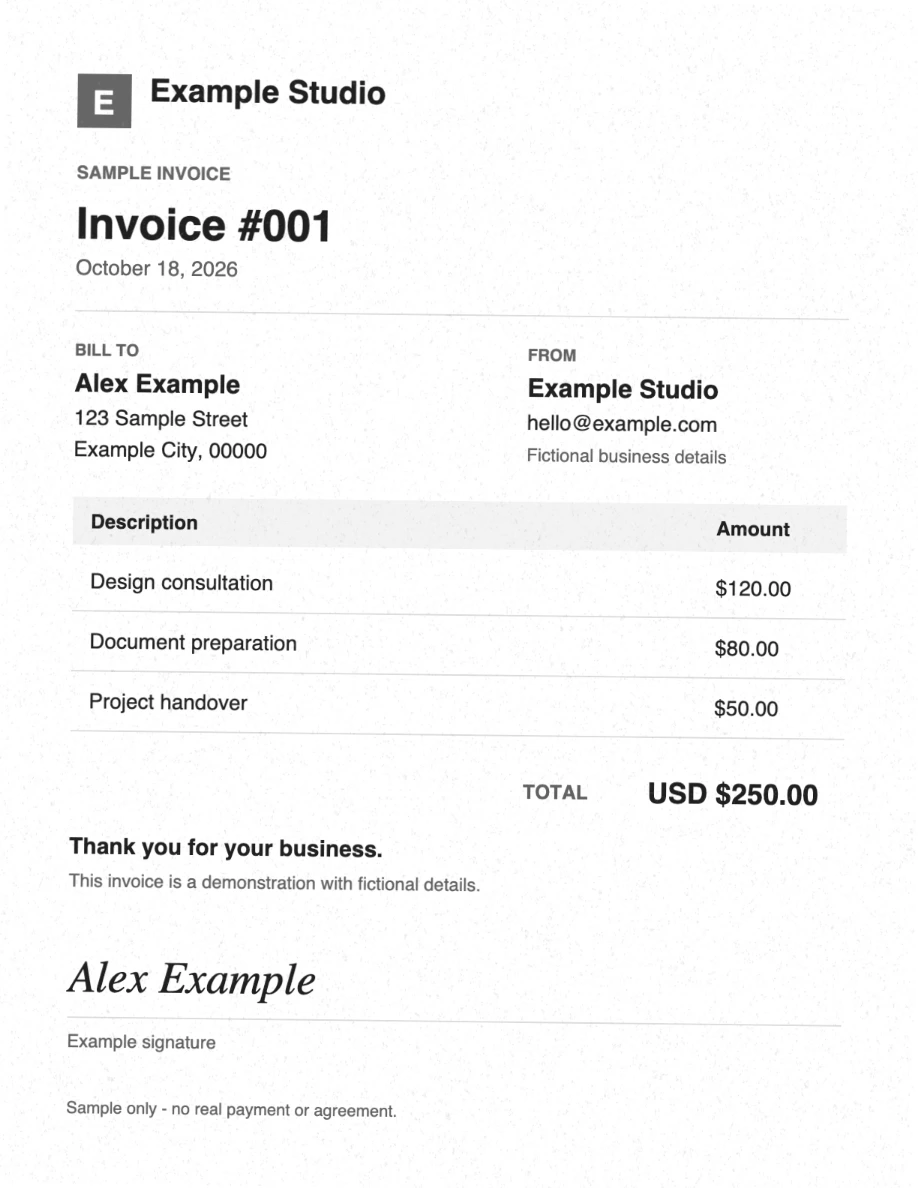
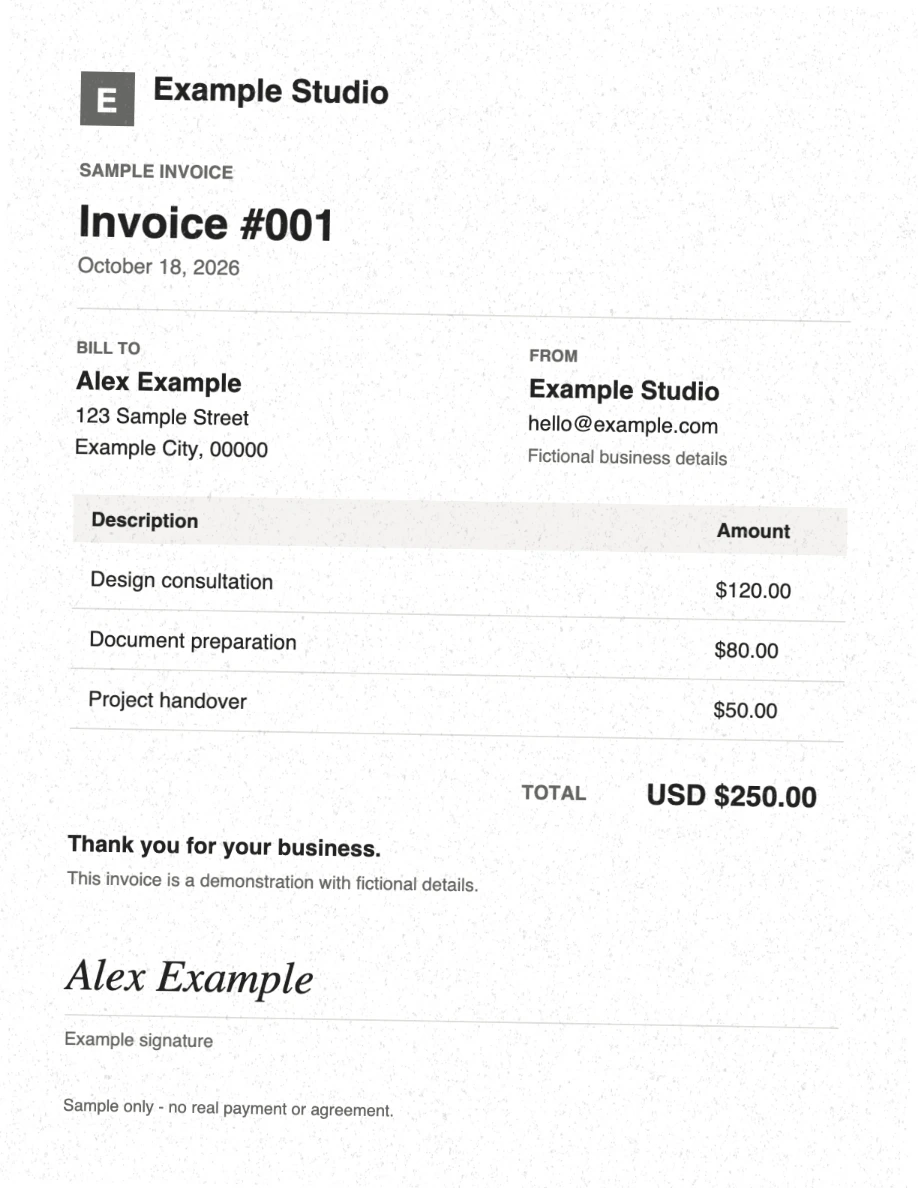
| File | Bytes | Rotation | Blur | Noise |
|---|---|---|---|---|
| Original | 2147 | Digital source, before rendering | ||
| Light | 683743 | 0.35° | 0.18 px | 0.12 |
| Medium | 758169 | 0.65° | 0.3 px | 0.25 |
| Strong | 931978 | 1° | 0.55 px | 0.4 |
Rotation variance is fixed at zero, brightness is 1, scale is 2, borders are off and output images use JPEG. Light uses color, medium/strong use grayscale. Strong also adds a small yellowish effect. The full contrast, color and effect values are in the settings file. The source is compact text/vector content; each output contains a full-page image, which explains this example’s large increase in bytes.
To reproduce: run the generator documented with the example files, then compare at 100%. Fixed parameters make the method repeatable; browser image encoding and PDF metadata can produce different bytes on regeneration.
One PDF per day is free. Pro offers unlimited scans for $2/month or $20/year. See plans.