PDF scan effects in your browser: privacy and limitations
Understand which processing stays on your device, why account and payment services still use the network, and what offline use and rasterized exports mean.
Try browser processing →Your PDF is processed on your device
The browser opens your selected PDF, renders its pages, applies effects and builds the output PDF. The application’s PDF processing path does not upload the PDF or signature image to our API. A file picker choosing a local document is different from sending that file to a server.
Local processing still uses your device’s memory and CPU. Large documents and high resolutions can take longer or exceed available memory, especially on a phone. Keep the source file so you can retry with a lower resolution.
Some services still communicate over the network
The site downloads application resources. Accounts, sign-in, daily usage authorization and subscriptions communicate with the backend. Payment checkout communicates with Lemon Squeezy. Email-related account actions use email services.
When Analytics is enabled and available, the application records permitted events such as selecting a PDF, completing an export or choosing a plan. The event schema uses categories such as file-size and page-count buckets; it does not include the PDF filename, page content or signature image. Measurement can be missing because of preferences, blockers or network failures.
“Your PDF stays on your device” describes document processing. It does not mean that the website makes no network requests or processes no account or usage data.
Check the behavior in your own browser
Use a fictional PDF for an inspection. Network developer tools can help you see what this browser session sends; they are a way to inspect behavior, not a guarantee about every future version or extension.
- Load the site and open your browser’s Network developer tools.
- Clear the request list, choose the fictional PDF and preview the scan effect.
- Inspect outgoing requests and their payloads. Distinguish static resources, usage metadata, measurement and account requests from document bytes.
- Generate and download a result. Online export authorizes usage through the API; inspect that request separately.
- Keep any screenshots free of account identifiers, tokens, payment details and real document content.
Offline works after the necessary resources are loaded
The PWA can cache application resources, but a first visit requires a connection. A page or worker that has not yet loaded may also require the network. Load the tool and try a fictional document before relying on it without connectivity.
Offline exports use a local daily counter. They do not confirm usage with the server and there is no durable queue that guarantees later synchronization of offline usage or Analytics. Account changes and checkout need connectivity. With the browser online, an API failure is not treated as an approved export: the generated result can be retained for a retry.
A visual transformation changes the PDF’s structure
The exported document contains page images. It may lose selectable text, links, form fields, accessibility structure and the validity of existing digital signatures. No OCR layer or certificate is added. Keep an original copy when any of those features matter.
The editor retains a document in memory during internal navigation, including a trip to pricing or sign-up. It does not provide a saved document history or cross-device synchronization. Reloading the page or leaving the browser document loses that in-memory editor state.
Inspect the same document before and after
The fictional sample contains large text, a table and a labelled example signature. Open either image at full size to inspect the page; download the PDFs to check the exported document itself.
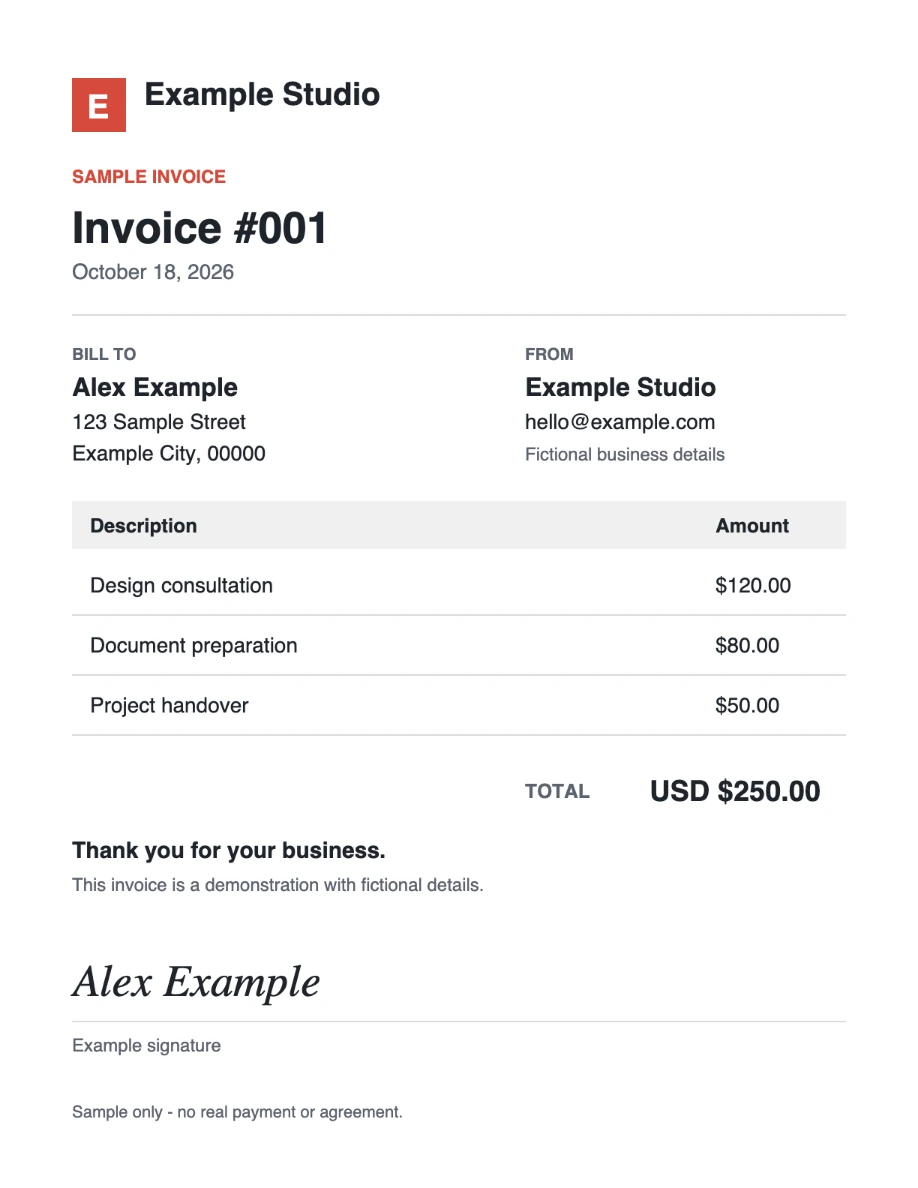
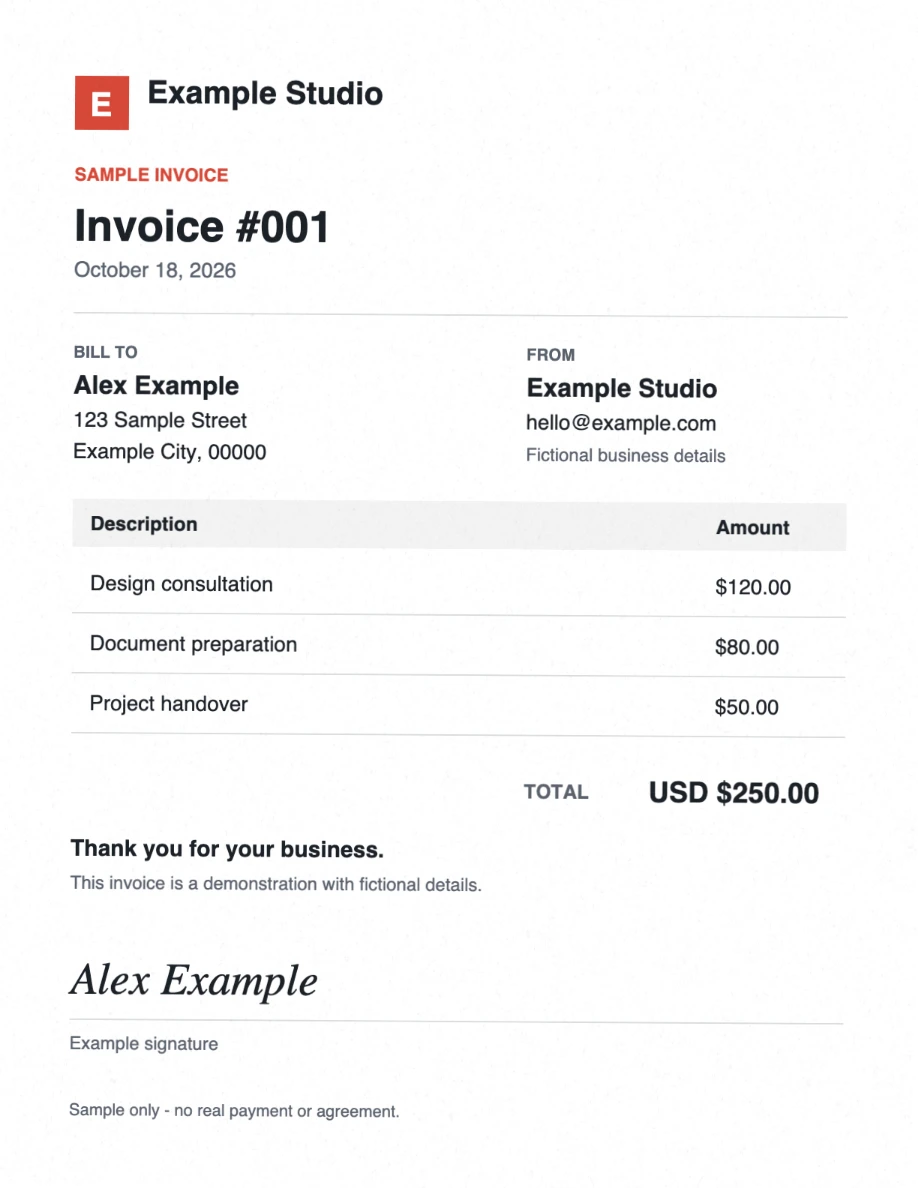
Download original PDFDownload scanned PDFView reproducible settings
These sample downloads do not use your daily document allowance.
One PDF per day is free. Pro offers unlimited scans for $2/month or $20/year. See plans.